NotePlan

October 19, 2025

Over the years I’ve used a number of task managers:

  • My Head:Kept everything in my head. Much spilled out
  • Paper: One Program I worked would not allow us to bring anything to work that was not in our pockets. I used pocket notebooks for everything including task management
  • Remember the Milk: Along came the Internet and I discovered RTM. Just found out it’s still there. Wow, after all these years!
  • todo.txt: I started todo.txt after I retired. As the name implies it’s a plain text based system using tags. The standard version had a group of Unix scripts to make task management easier. I added a few of my own in Python.
  • GoodTasks: Layer on top of Apple Reminders and Calendar

And the along came NotePlan which started using earlier this year after a multi-year stay with todo.txt

The closest metaphor is the Swiss Army knife.
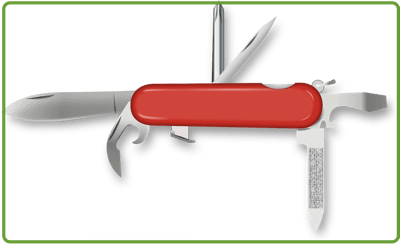
Swiss army knife 152394_1280.

Why do I use NotePlan? ->

  • Apple based,
  • Markdown,
  • Local storage,
  • Projects,
  • Intuitive interface,
  • Extensible

NotePlan Components

NotePlan’s major components are:

  • Task Management – Features Yearly, Quarterly, Monthly, weekly and Daily tasks. NP supports projects as well. IT also has time blocking, task filters, and recurring tasks
  • Notes – Based on text files using the Markdown format. It also has “wiki” note linking. You can use #tags for topics and @mentions to assign tasks or reference people, which are instantly searchable.
  • Calendar Integration – Integrates with iCloud, Google, and Exchange calendars. The integrated calendar, tasks, and notes display makes planning your day, and projects easy.
  • Knowledge Management – The text files based, markdown format, wiki linking, hast tagging, and mentions enable knowledge management
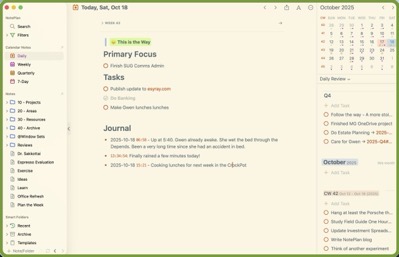
NotePlan Today 1.


NotePlan Characteristics

  • Plain Text files based on Markdown
  • All data is yours. Unlike some applications NotePlan data is stored on my system – in my case iCloud but other options are available
  • Wiki forward and back note linking
  • Apple Based
  • Cloudkit syncing
  • Tags
  • Mentions – references people and notes – for example: “Finalize plan with @jane-doe”
  • Search
  • Filters
  • Plugins – many already available and you can roll your own
  • Projects
  • Properties – Files can have user definable properties
  • Tasks, Checklists, Actions
  • Note Publication – A very intriguing feature I discovered after using NotePlan for some time is the Publish Notes capability

NotePlan Projects Bordered.


Here’s a couple sources explaining why to use NotePlan better than I can

Why Use NotePlan

My Productivity Workflow


Other App Posts:


PopClip

February 6, 2025

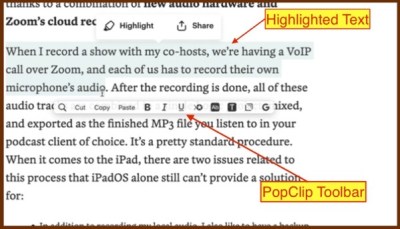
PopClip is a handy little Mac utility that I use multiple times every day. It appears as a toolbar whenever I select text on my Mac with the actions I’ve chosen.

I use it regularly to format text, search google, copy, paste, render as Markdown, create a new Draft document, new reminder, etc.

PopClip Toolbar.

The extension toolbar is customizable. There are over 200 extensions in the PopClip extension library. See PopClip Extenstions

Try PopClip using their FreeTrial. It’s also part of the SetApp subscription.

Previous posts in this series were:


Alfred

January 25, 2025

Concierge 1184853_1920.

Alfred is the Swiss Army knife of applications. The base application is free but there is Pro version which adds a multitude of functionality.

I would be lost on my computer without Alfred. Not only do I use it as a Spotlight replacement but I’ve created a dozen workflows that help automate my common tasks. A couple of those workflows invoke shell scripts as part of the workflow. I use the text replacement utility constantly. I’m not sure how I would log out, put the computer to sleep, or shut it down without Alfred’s system commands. In summary, I could go on and on but Alfred is a most excellent and essential app.

The free version contains:

  • Spotlight replacement
  • Web search
  • Calculate
  • Spell checker
  • System commands
  • File Quick Look without opening it

The Pro (paid) version contains:

  • Clipboard history
  • Snippet expansion
  • Workflows
  • Hot keys
  • Navigation & actions – Navigate file directory and perform actions on results
  • Control music app
  • Locate recently used docs for an app
  • Themes
  • Sync settings across Macs
  • Shell Integration

If you decide to try out Alfred I recommend starting with the free version and replace spotlight. Then gradually try out other features. Finally pay for the pro version. You will not regret it.

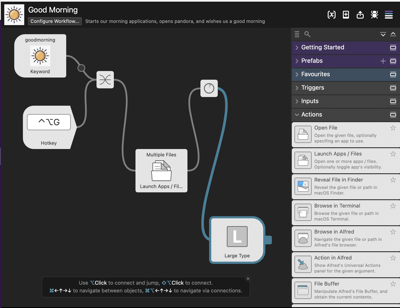
One last thing. The Alfred users have contributed to a “gallery” of workflows maintained by the Alfred team consisting of hundreds of workflows. If you prefer to roll you own the Alfred Workflow builder is simple and intuitive. Below is one of my workflows. In the morning I execute the Workflow by either entering “Good Morning” in the Alfred command bar or via the hotkeys I’ve defined. The workflow starts all my favorite apps if they are not already up and running:

CleanShot 2025-02-06 at 15.58.

Previous posts in this series