NotePlan

October 19, 2025

Over the years I’ve used a number of task managers:

  • My Head:Kept everything in my head. Much spilled out
  • Paper: One Program I worked would not allow us to bring anything to work that was not in our pockets. I used pocket notebooks for everything including task management
  • Remember the Milk: Along came the Internet and I discovered RTM. Just found out it’s still there. Wow, after all these years!
  • todo.txt: I started todo.txt after I retired. As the name implies it’s a plain text based system using tags. The standard version had a group of Unix scripts to make task management easier. I added a few of my own in Python.
  • GoodTasks: Layer on top of Apple Reminders and Calendar

And the along came NotePlan which started using earlier this year after a multi-year stay with todo.txt

The closest metaphor is the Swiss Army knife.
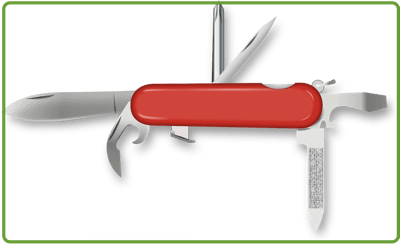
Swiss army knife 152394_1280.

Why do I use NotePlan? ->

  • Apple based,
  • Markdown,
  • Local storage,
  • Projects,
  • Intuitive interface,
  • Extensible

NotePlan Components

NotePlan’s major components are:

  • Task Management – Features Yearly, Quarterly, Monthly, weekly and Daily tasks. NP supports projects as well. IT also has time blocking, task filters, and recurring tasks
  • Notes – Based on text files using the Markdown format. It also has “wiki” note linking. You can use #tags for topics and @mentions to assign tasks or reference people, which are instantly searchable.
  • Calendar Integration – Integrates with iCloud, Google, and Exchange calendars. The integrated calendar, tasks, and notes display makes planning your day, and projects easy.
  • Knowledge Management – The text files based, markdown format, wiki linking, hast tagging, and mentions enable knowledge management
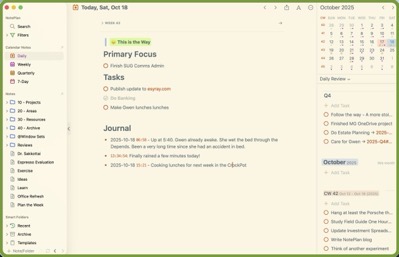
NotePlan Today 1.


NotePlan Characteristics

  • Plain Text files based on Markdown
  • All data is yours. Unlike some applications NotePlan data is stored on my system – in my case iCloud but other options are available
  • Wiki forward and back note linking
  • Apple Based
  • Cloudkit syncing
  • Tags
  • Mentions – references people and notes – for example: “Finalize plan with @jane-doe”
  • Search
  • Filters
  • Plugins – many already available and you can roll your own
  • Projects
  • Properties – Files can have user definable properties
  • Tasks, Checklists, Actions
  • Note Publication – A very intriguing feature I discovered after using NotePlan for some time is the Publish Notes capability

NotePlan Projects Bordered.


Here’s a couple sources explaining why to use NotePlan better than I can

Why Use NotePlan

My Productivity Workflow


Other App Posts:


PopClip

February 6, 2025

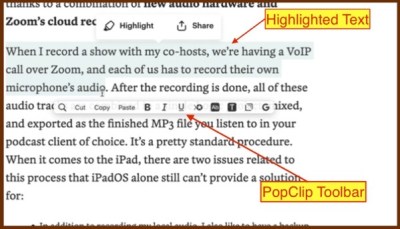
PopClip is a handy little Mac utility that I use multiple times every day. It appears as a toolbar whenever I select text on my Mac with the actions I’ve chosen.

I use it regularly to format text, search google, copy, paste, render as Markdown, create a new Draft document, new reminder, etc.

PopClip Toolbar.

The extension toolbar is customizable. There are over 200 extensions in the PopClip extension library. See PopClip Extenstions

Try PopClip using their FreeTrial. It’s also part of the SetApp subscription.

Previous posts in this series were:


Alfred

January 25, 2025

Concierge 1184853_1920.

Alfred is the Swiss Army knife of applications. The base application is free but there is Pro version which adds a multitude of functionality.

I would be lost on my computer without Alfred. Not only do I use it as a Spotlight replacement but I’ve created a dozen workflows that help automate my common tasks. A couple of those workflows invoke shell scripts as part of the workflow. I use the text replacement utility constantly. I’m not sure how I would log out, put the computer to sleep, or shut it down without Alfred’s system commands. In summary, I could go on and on but Alfred is a most excellent and essential app.

The free version contains:

  • Spotlight replacement
  • Web search
  • Calculate
  • Spell checker
  • System commands
  • File Quick Look without opening it

The Pro (paid) version contains:

  • Clipboard history
  • Snippet expansion
  • Workflows
  • Hot keys
  • Navigation & actions – Navigate file directory and perform actions on results
  • Control music app
  • Locate recently used docs for an app
  • Themes
  • Sync settings across Macs
  • Shell Integration

If you decide to try out Alfred I recommend starting with the free version and replace spotlight. Then gradually try out other features. Finally pay for the pro version. You will not regret it.

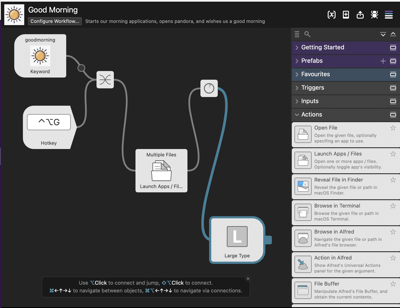
One last thing. The Alfred users have contributed to a “gallery” of workflows maintained by the Alfred team consisting of hundreds of workflows. If you prefer to roll you own the Alfred Workflow builder is simple and intuitive. Below is one of my workflows. In the morning I execute the Workflow by either entering “Good Morning” in the Alfred command bar or via the hotkeys I’ve defined. The workflow starts all my favorite apps if they are not already up and running:

CleanShot 2025-02-06 at 15.58.

Previous posts in this series


SuperKey mac Application

October 16, 2024

Superkey https://superkey.app/ is a nifty utility by an independent developer. I use Superkey dozens of times everyday. I bought it just for the Hyperkey feature which maps the useless caps lock key to shift-control-option-command key sequence thus opening up a gazillion set of hot key combinations not used by any other applications. That’s just one of the many caps lock options in Superkey.

Why would I want to do this when I have a perfectly good mouse? Hot keys are much faster than moving a mouse around. Furthermore, if you are a certain age where you know VT-100, ASR-35, and 2648 are not car models you look on mice as a another one of those fads that will come and go. For example I’ve mapped the Hyper Key+F keyboard shortcut to open the Finder application.

A small Example: I’ve set up an Alfred Workflow to launch NotePlan when I press the CAPS Lock and N keys

In addition it also adds several other features:

  • Seek anything you can display with just the keyboard
  • Remap keys to enable features like delete forward, past without formatting, etc.

This is one in a series of small applications I am using on my Mac. Look for another in the near future.


Hey Bartender

May 10, 2017

Bartender is an app to manage the Mac’s menu bar. The price is a hefty $15 and I’ve often thought who would waste $15 to rearrange and hide menu bar items.  Then one day I was working on my Mac and I did not see the Calendar Icon on the menu bar.  Did it crash?  Did it not start up the last time I booted the Mac?  When did I last boot my Mac?  Is my Mac infected?   A thousand and one questions bombarded my head.  Finally I figured out the problem.  After switching Applications a few times with the Alt-Tab keys I noticed sometimes I could see the Calendar Icon and sometimes I could not. The answer to the enigma – some Applications have many items on the horizontal menu bar and some have very few. 

Here’s an example of the menu bar without Bartender:

noBartender

For a few weeks whenever I needed to access a hidden menu bar Icon I Alt-Tabed until the needed Icon appeared.

Finally, you guessed it, I broke down and bought, installed, and configured the Bartender Application.  Now, I don’t notice it much while working on the Mac which is probably the best selling point: I don’t have this aggravating and annoying menu bar issue all the time.

Here’s an example with Bartender:

bartender

Here’s an example with Bartender expanded:

bartenderExpanded

While Bartender is definitely not for everyone I’d recommend Bartender if your menu bar Icons have encroached on your Application Menu and you use the menu bar Icons.


Mac Rebuild: my experience

June 15, 2015

Mac update Summary


To those of you who only read email subjects: I rebuilt my Mac and except for a couple of glitches that were my fault the Mac rebuild was as smooth as black ice on a Texas highway.

The long version


Mac are supposed to be rock solid and error free compared to PCs. That may or may not be true but they still have problems. Several weeks ago my Mac started running very slow, and at least the Chrome browser would not terminate. Also, the “lost+found” folderconsumed 25% of the total disk space. When I attempted to repair the disk using the Disk Utility it churned for quite awhile and displayed an error message something to the effect “could not repair disk, backup all your data, erase disk, and rebuild Mac”.

After much grinding of teeth and wringing of hands I bit the bullet and rebuilt my Mac from the ground up.

Erasing the disk and reinstalling the OS was idiot proof. Press one button to erase the disk. Then boot off the Internet and hit another button to install the OS.

The App Store remembers everything you’ve purchased. Other than failing to notice there is a “Purchased” tab reinstalling Apps bought from Mac App Store is very easy.

Not all was Sunshine and Margaritas however. Installing the printer was painful. I had to download and install 7 different “things” seperately. Printing now works but scanning doesn’t . I’m still attempting to fix my scanner issue. I can start the scan from the Mac now but not from the printer. Seems like a small thing to have to start the scan from the Mac but it really irritates me.

Installing Microsoft Office 365 shocked me. The installation was easy and worked the first time. Maybe Microsoft has finally seen the light?

Another big problem was reconnecting to Web sites I update/maintain via Ftp. The fault was all mine. I did not document essential information like user name, password, server,ftp port, and directory. I set them both up with FileZilla and did not record any of the essential parameters. To compound the issue FileZilla now comes packaged with Malware if you install it from Source Forge. Therefore, I had to find another Ftp client. After some research and experimenting with candidate Ftp tools I finally settled on Cyberduck at least for now. Also, both of the hosting services I use (Dreamhost and MacHighway) were extremely helpful.

Another interesting outcome of my Mac rebuild is I’ve recovered tons of disk space. Partially due to

Lessons learned


  • Keep a record of all accounts, licenses, and configuration parameters somewhere
  • Backup all your data. I recommend two backups – one at your home and one off site incase the unthinkable happens. Thankfully I had a backup of my data this time. A couple of years back on another computer I did not and never completely recovered.
  • If you are using free or shareware apps do your homework before blindly reinstalling them. They are trying make money also. One way to do so is to include “extra” products in the download like FileZilla now does.
  • No matter how good you plan there are little things that fall through the cracks. For example, my wife tried to watch a movie last night off of the Apple TV. It would not play. I had forgotten to turn on Apple Share on iTunes.